Contents tagged with Log Parser
-
Preventing Automated Attacks with IIS Dynamic IP Restrictions
Another one of the great built-in features of IIS 8 is Dynamic IP Restrictions (DIPR). With a few simple configuration steps you can quickly set limits for blocking IP addresses based on the number of concurrent requests or frequency of requests over a period time. With these parameters in place IIS will take over blocking requests unattended thereby making your server more secure.
-
Solving SQL Server High CPU with IIS Request Filtering
The other day I was troubleshooting 100% CPU utilization on a SQL Server 2008 database server. The server had 100 or so databases of varying sizes however none were larger than a few hundred MB and each database had a corresponding web site on a separate web server. Since the server hosted quite a few databases the high CPU needed to be resolved quickly because it was causing issues for everyone. High CPU on a database server can often be symptomatic of a issues occurring outside the server. In this case the real issue was in fact being caused by a SQL Injection attack on a web server.
-
Enhancing Log Parser Reports with Charts
When you need quick analysis of your traffic logs you won’t find an better tool than Microsoft’s free Log Parser. With Log Parser you can read a variety of log files including the Registry and Windows event logs. It’s ease of use comes from using SQL queries against your log file. You can get your data even faster by using multiple log parser queries in a batch file.
-
Using Url Rewrite to Block Page Requests
The other day I was checking the traffic stats for my WordPress blog to see which of my posts were the most popular. I was a little concerned to see that wp-login.php was in the Top 5 total requests almost every month. Since I’m the only author on my blog my logins could not possibly account for the traffic hitting that page.
-
Automate Log Parser to Find Your Data Faster
Microsoft’s Log Parser is a really powerful tool for searching log files. With just a few simple SQL commands you can pull more data than you ever imagined out of your logs. It can be used to read web site log files, csv files, and even Windows event logs. Log Parser isn’t intended to compete with stats products such as Webtrends Log Analyzer or SmarterStats by Smartertools.com which I feel is the best on the market.
I primarily use Log Parser for troubleshooting problems with a site such as identifying http errors or long running page requests. When I look into an issue I also like to get a snapshot for the day’s traffic such as the top IP addresses making requests and the top bots hitting the site. This is all available from Log Parser once you know the right queries to run.
As one can imagine when a site is having problem you want to know as much information as quickly as possible. Manually running Log Parser queries on a site’s log files is not easy when you have an urgent problem resolve. My biggest challenge with using Log Parser is remembering the different queries I want and getting the syntax correct. Solving this challenge is easier than one might think and involves just creating the scripts ahead of time that you need.
I just create a batch file called logparse.bat and use the %1 parameter for the name of the log file that I want to analyze and then I redirect the output of the query to a text file:
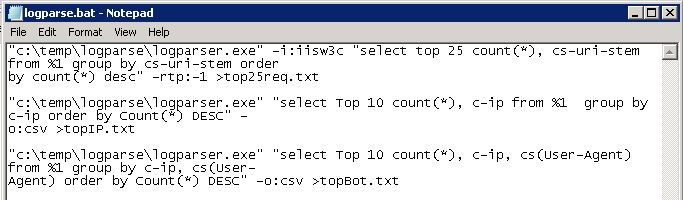
Here are the queries I am using: